
Browser fingerprinting is a technique for identifying browsers based on the information they reveal. That information is typically combined and hashed to produce a browser fingerprint.
Websites use fingerprinting to track users, prevent fraud, and detect bots. It can help a site recognize a returning browser even after its cookies have been deleted. If you're running AI agents or scrapers, browser fingerprinting might be one of the reasons your bots keep getting blocked.
In this article, we'll explain how browser fingerprinting works, its uses and limitations, and why it matters for privacy, AI agents, and web scraping.
How Browser Fingerprinting Works
Websites collect browser characteristics such as the user agent string, language, screen dimensions, available fonts, and canvas rendering. A typical approach is to combine them into a single data structure and then pass it through a hashing function.
The resulting hash serves as a compact identifier that can be compared across visits. How well it distinguishes browsers depends on the information in the collected signals and the population being compared. With the same hashing function, identical inputs produce the same value.
Curious how unique your browser fingerprint is? Check out the Am I Unique? tool.
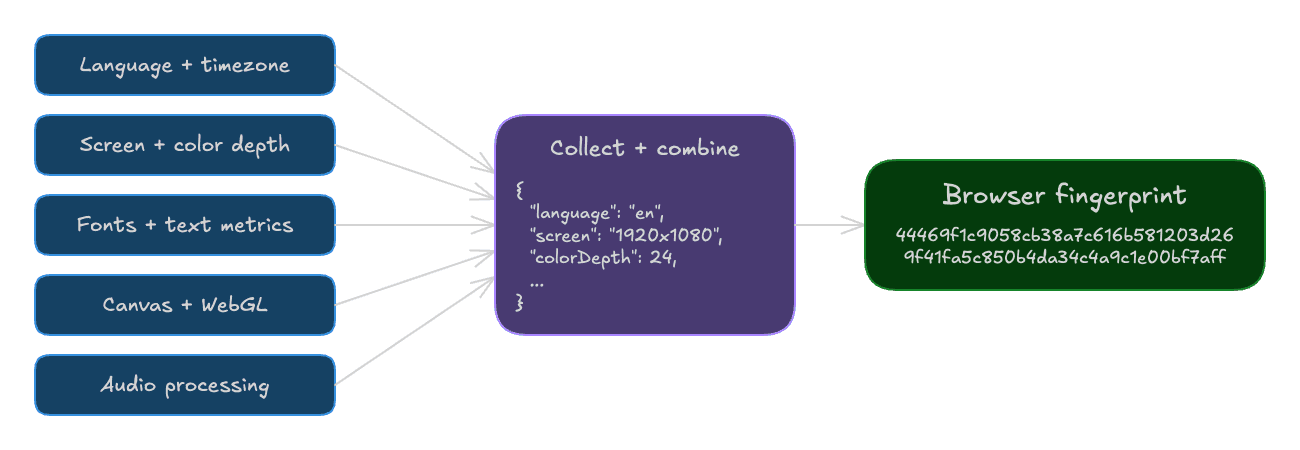
Browser Fingerprint Signals
Websites collect information through passive and active fingerprinting:
- Passive fingerprinting: uses information already exposed in requests and connections, such as HTTP headers, the IP address, and TLS handshake characteristics. The server can observe these without running code in the browser.
- Active fingerprinting: runs JavaScript or other client-side code to collect additional characteristics. A script can read screen dimensions, measure text, or ask the browser to render graphics and process audio, then send the results to a server.
Common Browser and Device Information
A browser reveals some basic information when it connects to a website. Depending on the browser and its privacy settings, a request can expose:
| Signal group | Examples |
|---|---|
| Browser | Browser family and version information |
| Operating system | Platform information, such as Windows or macOS |
| Language preferences | Preferred languages and their order |
Many browsers share these details, but combining them can help narrow down a match. The available information depends on the browser and its protections; values may be reduced or generalized.
HTTP Headers
HTTP request headers carry much of this information. User-Agent provides browser and operating-system information, while Accept-Language lists language preferences. Headers such as Accept and Accept-Encoding describe supported response formats and compression methods.
A server can combine these values without running a fingerprinting script. Browsers may reduce the detail they expose, and client hint headers can provide additional information. Some hints are sent by default; others require the server to request them and the browser to allow them.
Connection details can also contribute. During the Transport Layer Security (TLS) handshake, a client advertises supported encryption options. Their combination can help characterize the client software without running JavaScript, but doesn't identify a person on its own.
Canvas Fingerprinting
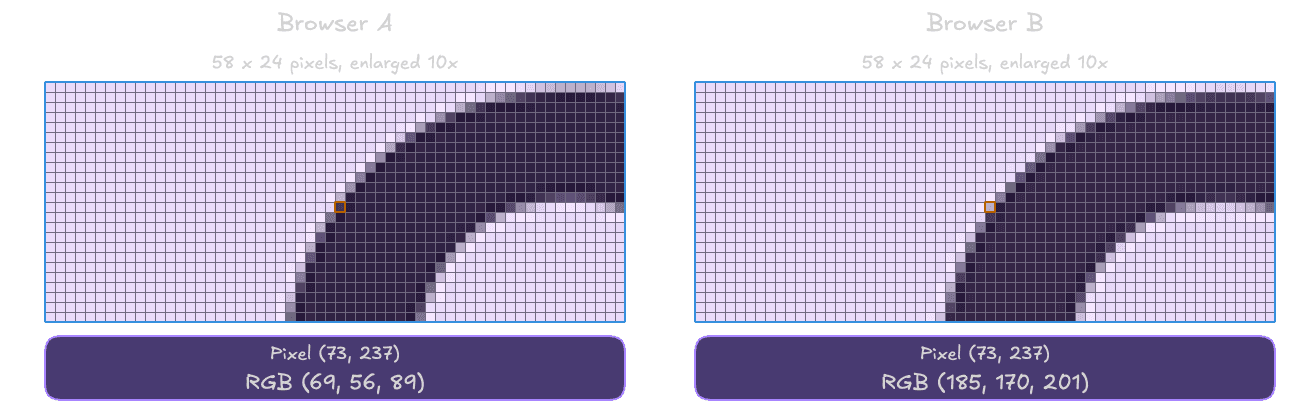
Canvas fingerprinting asks the browser to draw an image, reads back its pixels, and derives a value from them. The image typically contains text or shapes that reveal differences in rendering.
For example, two browsers can draw text that looks identical to you but contains slightly different pixel values. Fonts, operating systems, and graphics implementations can affect the result. A site can then compare pixel hashes without storing the whole image.
The illustration below shows how a text edge can differ between two browser outputs.
WebGL Fingerprinting
WebGL fingerprinting examines how the browser renders graphics and which graphics capabilities it exposes. A script can render a scene and inspect its pixels, or query supported extensions and graphics limits.
For example, two browsers with the same version may expose different graphics capabilities. Some browsers also expose graphics vendor and renderer information, although privacy protections can restrict it. These observations add signals beyond a 2D canvas image.
Font Fingerprinting
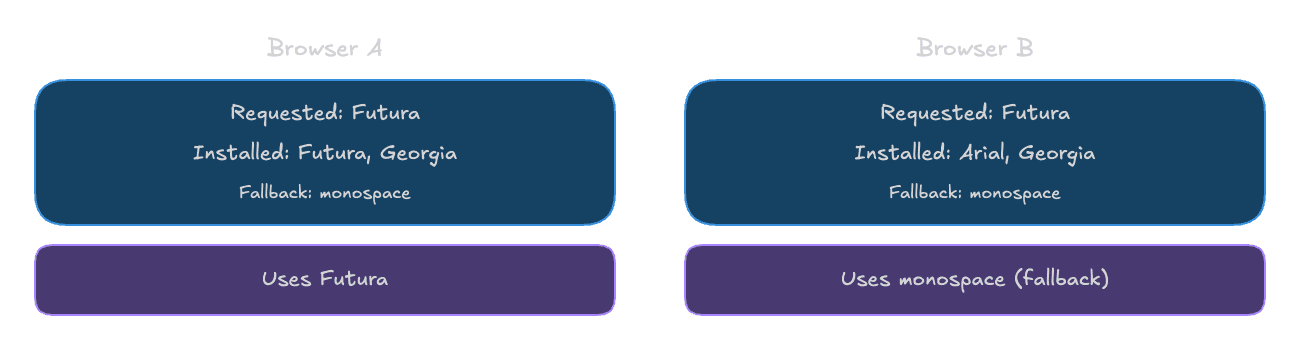
Font fingerprinting can infer available fonts by measuring text. A script requests a candidate font with a fallback, then compares the text's dimensions with those produced by the fallback alone.
A changed width or height suggests that the candidate font is available. Repeating this across many font names builds a profile; browser protections can restrict which fonts a page can access.
In the illustration below, Browser A has Futura available, while Browser B uses the monospace fallback. Measuring the rendered text can help distinguish these two configurations.
Audio Fingerprinting
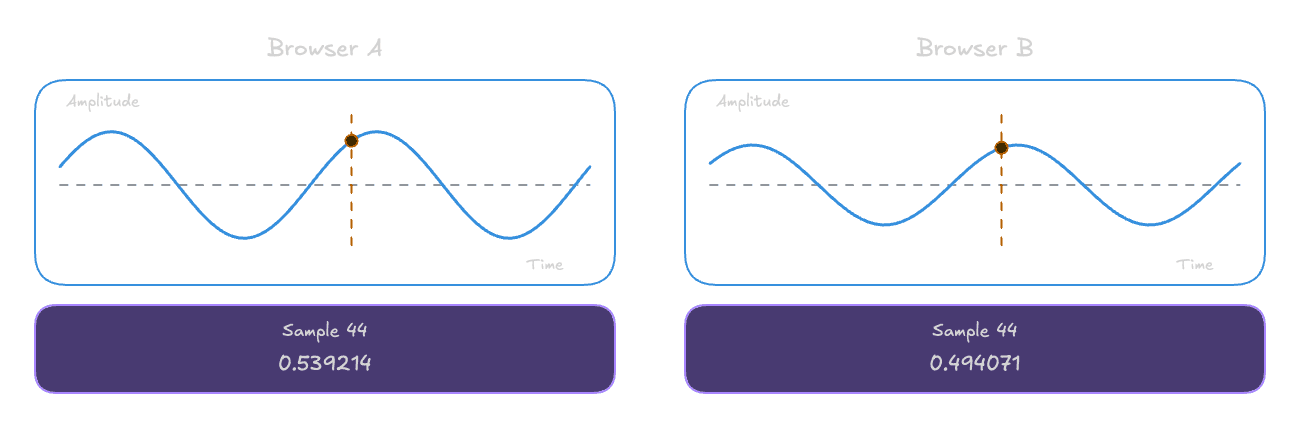
Audio fingerprinting can use an OfflineAudioContext to process a generated audio signal and inspect the result. It doesn't need to record your microphone or play sound through your speakers.
Differences in audio processing can produce different sample values. For example:
Fingerprinting vs Cookies and IP Addresses
| Method | What the site compares | Where it falls short |
|---|---|---|
| Tracking cookie | An ID stored in the browser and returned with requests | Clearing the cookie removes that ID |
| IP address | The public address of the incoming connection | Shared networks group different browsers together; switching networks can change the address |
| Browser fingerprint | A combination of settings, fonts, and rendering results | Similar browsers can match; browser updates can change the result |
A site can combine these methods when assessing a visit. Browser fingerprinting focuses on browser-visible signals; the broader term device fingerprinting can also include information collected through native apps.
What Is Browser Fingerprinting Used For?
The same collection techniques can support both security checks and tracking. Let's look at the main uses.
Tracking and Analytics
A tracker can compare fingerprints across visits when a cookie identifier is unavailable. If the same tracking service operates on multiple websites, it may also connect activity across those sites.
This creates a privacy problem: clearing browser data doesn't necessarily prevent the service from recognizing the browser again.
Fraud Prevention
A login from an unfamiliar browser can be one reason to request additional verification. Repeated browser characteristics across accounts can also contribute to a fraud investigation.
These signals need context. Someone buying a new laptop or using a shared computer can produce the same kinds of changes a security system is watching for.
Bot Detection
Websites can check for automation indicators and inconsistent browser settings when deciding how to handle traffic. For example, navigator.webdriver can explicitly report that a browser is automated. This can flag both AI agents and scripted scrapers; the site doesn't need to know what's controlling the browser.
An AI agent might receive a challenge before it can read the page or take an action. Changing its model or prompt won't change the browser characteristics that triggered the check. Network reputation, request patterns, and session state also matter when diagnosing blocked requests.
That's why we've been focusing on stealth browsers at Browser Use: helping AI agents access websites and supporting scraping of protected sites at scale. Our hosted browser infrastructure handles the browser environment separately from the agent's reasoning.
Browser Fingerprinting Limitations and Common Pitfalls
A useful fingerprint needs to distinguish browsers and remain recognizable over time. Both are harder than they sound.
Different Browsers Can Share a Fingerprint
Suppose a company gives employees the same laptop model, browser version, fonts, and display settings. Several machines may return the same values to a fingerprinting script.
The same applies to AI agents launched from one container image. Their browsers may share fonts, graphics capabilities, and display settings, making their traffic easier to group. These shared browser signatures can contribute to bot detection, but a shared fingerprint alone isn't proof of automation.
A longer hash won't make those inputs more distinctive. Even a correctly recognized browser can be shared by several people, so its fingerprint shouldn't replace account authentication.
Fingerprints Can Change
A browser update, different display, or changed privacy setting can alter the collected signals. With exact matching, one changed field can make a returning browser appear new.
A service can retain the individual observations and compare them when hashes differ. For example, the browser version might change while its language and graphics signals stay the same. The service assesses similarity between those observations, not between the hash strings.
Allowing some differences can preserve recognition, but also increases the possibility of grouping separate browsers together. The appropriate tradeoff depends on the application and the consequences of a wrong match.
How to Prevent Browser Fingerprinting
Browser protections can make fingerprinting less effective, although no single setting prevents every technique. They generally work by blocking collectors, exposing less detail, making users look more alike, or changing selected outputs.
Use Built-in Browser Protections
Firefox's fingerprinting protections block known fingerprinting scripts. Private Browsing and Strict mode also enable protections against suspected fingerprinting, including changes to canvas readback and exposed hardware details.
Tor Browser tries to make users less distinguishable from one another. It limits font enumeration and uses letterboxing to group browser window dimensions into common sizes.
These protections have tradeoffs. Restricting fonts or changing image data can affect legitimate website features. If a site breaks, investigate the specific protection involved before disabling protections everywhere.
Understand What Cookies, Private Windows, and VPNs Change
These tools address different parts of tracking:
| Action | What it changes | What can remain |
|---|---|---|
| Delete cookies | Removes stored cookie identifiers | Browser settings and rendering signals |
| Open a private window | Separates browsing state; may add protections | Many browser and device characteristics |
| Use a VPN | Changes the public IP visible to the site | Browser API values and rendering behavior |
| Enable fingerprinting protections | Blocks collection or reduces identifying detail | Signals the protections don't cover |
Prefer coordinated browser protections over changing individual values at random. Spoofing one characteristic can create an unusual combination that makes your browser easier to distinguish.
Conclusion
Browser fingerprinting combines observable characteristics to help recognize a browser. Its usefulness depends on how distinctive those characteristics are, how much they change, and how the system compares them.
To reduce fingerprint-based tracking, use built-in browser protections that limit exposed information, block collectors, or make observations less useful for linking visits.
If you're tired of workflows failing because of bot protection, consider checking out our managed browser infrastructure.