
Submitting job applications often means filling out the same information across different websites. You can either do this manually or use an AI-powered browser automation tool such as Browser Use.
In this article, we'll look at how to automate job applications with Python. We'll write a script to discover positions, evaluate them against a resume, fill out and submit applications, upload the resume when required, and record the results.
Requirements:
- Python v3.12 or newer
- A Browser Use account
- An OpenAI account
How the Job Application Bot Works
We'll build a multi-step Python workflow where each step is a separate function. We'll use Pydantic for data validation, Browser Use Agents for browser automation, and the OpenAI API for resume matching. The Python script runs locally and uses Browser Use's hosted V4 API to control a cloud browser.
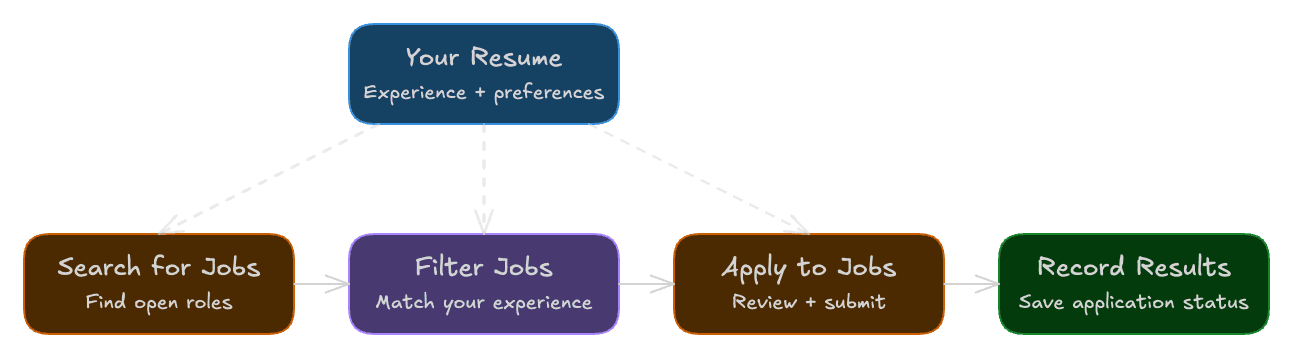
The workflow will have four stages:
- Search for jobs and extract their details.
- Evaluate each job against a resume to find suitable positions.
- Use browser automation to fill out and submit applications, uploading a resume when required.
- Record the application results.
Set Up the Python Project
You'll need a Browser Use API key (eligible signups receive $1 in free credits) and an OpenAI API key.
Install the Dependencies
Start by creating a new directory and a virtual environment:
$ mkdir job-applications && cd job-applications
$ python3 -m venv env && source env/bin/activate
Next, install the requirements:
(env)$ pip install python-dotenv==1.2.4 browser-use-sdk==3.11.3 openai==3.26.0 pydantic==2.13.4Environment Variables
Create .env and paste in both of your API keys:
# .env

BROWSER_USE_API_KEY=<your-browser-use-key>
OPENAI_API_KEY=<your-openai-key>
Prepare Your Resume
Create a resume.json file in the project root:
{
  "name": "John Doe",
  "email": "john@example.com",
  "location": "San Francisco, California, US",
  "experience": "Five years building web apps and APIs.",
  "skills": ["Python", "Django", "React", "PostgreSQL"],
  "preferences":
    "Software engineering roles in SF; on-site, hybrid, or remote."
}
Replace the example details with your own information, then add your resume to the project directory as resume.pdf. The PDF file will be used when a resume attachment is required.
Finally, create main.py with the following boilerplate code:
# main.py

import csv
import json
import sys
from datetime import date
from pathlib import Path
from typing import Literal

from browser_use_sdk.v4 import BrowserUse
from dotenv import load_dotenv
from openai import OpenAI
from pydantic import BaseModel, HttpUrl, TypeAdapter

load_dotenv()


def save_json(path, data):
    Path(path).write_text(json.dumps(data, indent=2))


def load_json(path):
    return json.loads(Path(path).read_text())


def main():
    actions = {}
    actions[sys.argv[1]]()


if __name__ == "__main__":
    main()
The code block above:
- Imports the required libraries and loads the API keys from .env.
- Adds two utility functions for reading and writing JSON files.
- Sets up
main()to trigger different functions based on the system argument.
Stage 1: Find Job Listings
In the first stage, we'll use Browser Use to browse the internet and find job listings that broadly match the resume. For a standardized response, we'll use a Pydantic model.
First, define the Job model:
# main.py

class Job(BaseModel):
    title: str
    company: str
    location: str
    description: str
    requirements: list[str]
    url: HttpUrl
Next, create a run_json() helper to simplify working with Browser Use:
# main.py

def run_json(client, prompt, schema, run_info=None, **options):
    adapter = TypeAdapter(schema)
    prompt = (
        f"{prompt}\nReturn JSON matching: "
        f"{json.dumps(adapter.json_schema())}"
    )
    run = client.runs.create(prompt, max_cost_usd=3, **options)
    preview_url = (
        "https://cloud.browser-use.com/v4/session/"
        f"{run.session_id}"
    )

    if run_info is not None:
        run_info.update(run_id=run.id, preview_url=preview_url)

    print(f"Browser Use run: {run.id}")
    print(f"Live preview: {preview_url}")

    result = client.runs.wait_for_completion(run.id, timeout=600)

    if result.status.value != "completed":
        raise RuntimeError(result.status.value)

    return adapter.validate_json(result.result)
In this function, we add the expected JSON structure to the prompt, start a Browser Use run, and wait for it to finish. Since Browser Use returns the result as a string, we use Pydantic to validate it before returning the data.
We also set a $3 run cost cap and wait up to 10 minutes locally.
With the helper ready, let's use it to search for jobs. Add a search() function:
# main.py

def search():
    resume = load_json("resume.json")

    with BrowserUse() as client:
        jobs = run_json(
            client,
            f"""
            Check the resume and find 5 appropriate jobs for this person.
            Open each job page and return its details and application URL.
            Do not apply.

            Resume: {json.dumps(resume)}
            """,
            list[Job],
        )

    save_json("jobs.json", [job.model_dump(mode="json") for job in jobs])
    print(f"Found {len(jobs)} jobs.")
Here, we load resume.json and ask Browser Use to find five appropriate jobs. The agent will do all the work for us: open the listings, extract the details, and return them in the format defined by Job. Finally, the results will be saved in the jobs.json file.
To make the search available from the command line, update main() like so:
# main.py

def main():
    actions = {
        "search": search,
    }
    actions[sys.argv[1]]()
Now, run the search:
(env)$ python main.py search

# Browser Use run: bd92904f...
# Live preview: https://cloud.browser-use.com/v4/session/bd92904f...
# Found 5 jobs.
You can use the printed preview link to see what's happening under the hood. Once the run finishes, check jobs.json.
The walkthrough outputs use fictional jobs and application results. Here's an abbreviated jobs.json example; the remaining four records are omitted:
// jobs.json

[
  {
    "title": "Python Backend Engineer",
    "company": "Harborline Software",
    "location": "San Francisco, CA (hybrid)",
    "description": "Build Django APIs for a customer analytics platform.",
    "requirements": [
      "Python",
      "Django",
      "PostgreSQL",
      "3+ years of experience"
    ],
    "url": "https://example.com/careers/python-backend-engineer"
  },
  // ...
]
All five positions are in San Francisco, but their requirements differ. Three involve web apps and APIs, one focuses on engineering management, and one requires embedded systems experience.
In the next step, we'll filter them down.
Stage 2: Match Jobs to Your Resume
First, create a JobMatch model to store each selected job and the reason it was selected:
# main.py

class JobMatch(BaseModel):
    job: Job
    reason: str
To build the shortlist, add a filter_jobs() function:
# main.py

def filter_jobs():
    jobs = {job["url"]: job for job in load_json("jobs.json")}

    with OpenAI(timeout=60, max_retries=0) as client:
        response = client.responses.create(
            model="gpt-5-mini",
            instructions="""
            Keep jobs that could be a reasonable fit for this resume.
            Be flexible about stack and experience gaps.
            Return JSON with a matches array; each item contains url and
            reason. Copy each selected URL exactly and give a short reason.
            """,
            input=json.dumps(
                {
                    "task": "Return JSON with a matches array.",
                    "resume": load_json("resume.json"),
                    "jobs": list(jobs.values()),
                }
            ),
            text={"format": {"type": "json_object"}},
            store=False,
        )

    if response.status != "completed" or not response.output_text:
        raise RuntimeError("Filtering did not return a complete result.")

    matches = [
        JobMatch(job=jobs[item["url"]], reason=item["reason"])
        for item in json.loads(response.output_text)["matches"]
    ]

    save_json(
        "filtered_jobs.json",
        [match.model_dump(mode="json") for match in matches],
    )

    for match in matches:
        print(f"{match.job.title} - {match.reason}")
We send the resume and job listings to OpenAI and use JSON mode to request matching URLs and a short reason for each selection.
For each returned URL, we look up the original job, validate the match with Pydantic, and save it to filtered_jobs.json. This keeps the job details intact while adding an explanation you can review.
As with the search, add the new function to the actions dictionary:
# main.py

def main():
    actions = {
        "search": search,
        "filter_jobs": filter_jobs,
    }
    actions[sys.argv[1]]()
Then run it:
(env)$ python main.py filter_jobsThe example filtering response contains three matches. Two are shown here; the third is omitted:
{
  "matches": [
    {
      "url": "https://example.com/careers/python-backend-engineer",
      "reason":
        "Five years of API work with Python, Django, and PostgreSQL."
    },
    {
      "url": "https://example.org/careers/full-stack-engineer",
      "reason": "React and Python skills match the frontend and API work."
    },
    // ...
  ]
}
The five example jobs are now down to three. Each selected role uses the skills listed in the provided resume. Your results may differ; review filtered_jobs.json before applying. JSON mode guarantees neither the expected fields nor unique, known URLs, so malformed selections can still raise an error.
Stage 3: Fill and Submit Job Applications
With three positions shortlisted, let's use Browser Use to apply. Start by adding a JobApplication model to describe the result:
# main.py

class JobApplication(BaseModel):
    status: Literal["submitted", "needs_review"]
    details: str
We'll ask the agent to return submitted when it finds a submission confirmation, or needs_review when it needs your help. The details field will contain the confirmation or explain what prevented completion.
Now add an apply_jobs() function to work through the shortlist:
# main.py

def apply_jobs():
    matches = TypeAdapter(list[JobMatch]).validate_python(
        load_json("filtered_jobs.json")
    )

    if not matches:
        print("No jobs to apply to.")
        return

    with BrowserUse() as client:
        workspace = client.workspaces.create(name="job-applications")
        client.workspaces.upload(workspace.id, "resume.json")
        client.workspaces.upload(workspace.id, "resume.pdf")

        for match in matches:
            job = match.job
            print(f"{job.title}\n{job.url}\n{match.reason}")

            if input("Apply to this job? Type APPLY: ") != "APPLY":
                continue

            run_info = {}
            try:
                result = run_json(
                    client,
                    f"""
                    Apply once at {job.url} using only uploads/resume.json.
                    Attach uploads/resume.pdf if required.
                    Stop for missing answers or consent questions.
                    Return submitted only with the site's confirmation
                    in details. Otherwise return needs_review
                    and explain why.
                    """,
                    JobApplication,
                    workspace_id=workspace.id,
                    run_info=run_info,
                )
            except Exception as error:
                result = JobApplication(
                    status="needs_review",
                    details=f"{type(error).__name__}: {error}",
                )
                track(job, result, run_info)
                print("Stopped. Inspect the run before retrying.")
                break

            if result.status == "submitted" and not result.details.strip():
                result.status = "needs_review"

            track(job, result, run_info)
            print(result.model_dump_json(indent=2))
We first upload the resume files to a Browser Use workspace. Passing workspace_id to each run makes them available as uploads/resume.json and uploads/resume.pdf, so the agent can read your information and attach the PDF when required.
The function then displays each job and asks whether you want to apply. Typing APPLY starts a Browser Use run to fill out and submit that application; any other response skips it. You can follow along through the live preview link, but there isn't a second approval step before submission.
For a practice run, use a form you control and replace the application prompt with instructions to fill the form, stop before submission, and return needs_review. Missing answers, consent questions, and login requirements can prevent a real application from completing. For sites that require an account, see our guide to authenticating AI web agents.
After each run, we pass the result and browser link to track(). We'll implement that function in the next section.
Add apply_jobs to the actions dictionary. We'll run it once the tracking function is in place:
# main.py

def main():
    actions = {
        "search": search,
        "filter_jobs": filter_jobs,
        "apply_jobs": apply_jobs,
    }
    actions[sys.argv[1]]()
Stage 4: Track Application Results in CSV
Finally, let's automatically keep track of applications in a CSV file.
Add the track() function:
# main.py

def track(job, result, run_info):
    run_id = run_info.get("run_id", "")
    preview_url = run_info.get("preview_url", "")

    with open("applications.csv", "a", newline="") as file:
        writer = csv.writer(file)

        if file.tell() == 0:
            writer.writerow(
                ["date", "company", "title", "url",
                 "status", "details", "run_id", "preview_url"],
            )

        writer.writerow(
            [date.today(), job.company, job.title, str(job.url),
             result.status, result.details, run_id, preview_url]
        )
Each call appends a row with the job details, application status, and run links, preserving any earlier results. The header is written only when the file is empty. Since apply_jobs() already calls this function after each result or run error, tracking happens automatically.
The CSV records the agent's reported outcome; it doesn't independently verify the site's receipt or prevent duplicate applications. Inspect the recorded run before retrying a needs_review result, and check previous rows before approving the same job again. If search or filtering fails, don't continue with older output files.
We're now ready to run apply_jobs() and record the results with track():
(env)$ python main.py apply_jobsThe script asks you to approve each shortlisted job. Once you type APPLY, Browser Use opens the application, fills out the form, and attaches your resume when required. It then submits the application or reports what needs your attention.
After the run, open applications.csv to see the results. Here are the company, title, and status columns; the other columns are omitted for readability:
# applications.csv

company,title,status
Harborline Software,Python Backend Engineer,submitted
Cedarwick Labs,Full-Stack Engineer,needs_review
Northvale Systems,Internal Tools Engineer,submitted
That completes the workflow. To run it from the beginning, use these commands in order:
(env)$ python main.py search
(env)$ python main.py filter_jobs
(env)$ python main.py apply_jobs
Conclusion
In this article, we used Browser Use to find jobs, fill out application forms, and upload resumes. We also added resume matching with OpenAI and saved application results to a CSV file.
You could also ask Browser Use to handle the whole process with a single prompt. Splitting it into a workflow gives you better visibility and more control: you can inspect the search results, adjust filters, approve each application, and check the outcome in the CSV.
Next steps:
- Schedule searches and notify yourself when suitable jobs appear.
- Add parallel applications with separate sessions and a database for tracking.
- Tailor resumes using only your experience.