
AI web agents can browse the web, click buttons, fill forms, and extract data. They can do almost anything a human can do online...except log in.
Authentication isn't a minor inconvenience; it prevents agents from completing tasks truly useful to you. Unauthenticated agents can't check your email, manage your calendar, or process a return.
Here's how to enable your agents to securely authenticate with your accounts, so they can access the services you use.
Codex says "Work browser access requires an authenticated account"? That is not a website login. Since Codex app 26.1013, Work mode needs a signed-in ChatGPT account when its built-in browser or computer tools are on, so API key (BYOK) users get this error on every message. OpenAI has not fixed it: openai/codex#54841 is still open on Oct 21, 2026, and a user reports the error persists after that day's app update. Fixes users report: sign in to ChatGPT in the app; or set
conversationDetailModeback to"STEPS_COMMANDS"in~/.codex/config.tomland fully restart the app, which leaves Work mode; or turn the built-in browser and computer tools off. To keep a browser in Codex without a ChatGPT account, add one as an MCP server: setup lines.
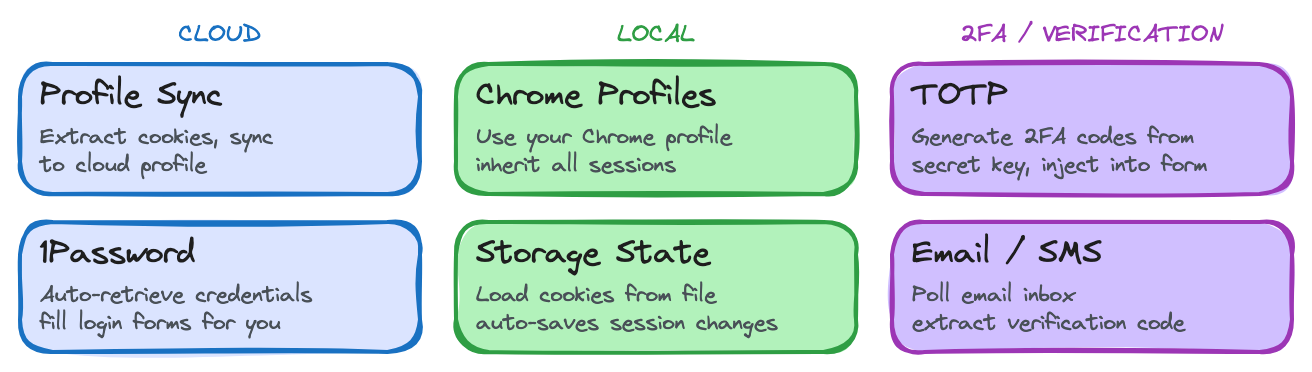
Cookie Syncing

When you log into a website, your browser stores cookies that prove you're authenticated. On future visits, your browser automatically sends these cookies back, so the server recognizes you without another login.
Cookie syncing copies your browser's cookie store to the agent's browser. Since the browser now has the same cookies, each website treats the agent as "you."
Most browser automation platforms support this. Browserbase calls them Contexts. Steel and Kernel call them Profiles. Internally, they're all persisting user data directories with their own cookie stores.
Here's how each platform implements it.
Browser Use
Browser Use supports syncing your real Chrome profile to the cloud with a single terminal command. You can also export cookies as a file.
# Sync your Chrome profile to Browser Use Cloud
# export BROWSER_USE_API_KEY=your_key && curl -fsSL https://browser-use.com/profile.sh | sh

# Or use your Chrome profile directly (OSS)
browser = Browser.from_system_chrome()

# Or export cookies for use anywhere (OSS)
await browser.export_storage_state('auth.json')
browser = Browser(storage_state='auth.json')
Browserbase
Browserbase persists auth state via reusable Contexts. The API is straightforward; you authenticate once, save the context, and load it in future sessions.
context = bb.contexts.create(project_id="your_project_id")
session = bb.sessions.create(
    project_id="...",
    browser_settings={"context": {"id": context.id, "persist": True}}
)
Browserbase also supports syncing cookies from your local Chrome browser to a persistent context via their cookie-sync skill. You can filter by domain and refresh existing contexts.
Steel
Steel uses Profiles, persistent browser identities that store cookies, auth tokens, and fingerprints across sessions.
session = client.sessions.create(persist_profile=True)
# Later: reuse the profile
new_session = client.sessions.create(profile_id=session.profile_id)
Kernel
Kernel saves cookies and local storage via profiles so future sessions start authenticated.
await kernel.profiles.create(name="my-github")
browser = await kernel.browsers.create(
    profile={"name": "my-github", "save_changes": True}
)
Password Managers

Password managers like 1Password let agents retrieve credentials from a vault and fill login forms automatically. This includes stored TOTP codes — the 6-digit codes from authenticator apps that refresh every 30 seconds.
The agent never sees your actual passwords, and values are filled programmatically.
Best for password manager integration: Kernel. Its Managed Auth auto-discovers credentials by matching the target domain against your vault. If you need human approval before every credential fill, Browserbase's Director integration provides the most interactivity. Browser Use is most flexible if you want to customize the integration, with both cloud-managed and open source options.
Browser Use
Connect your 1Password service account in Cloud settings, and the agent automatically retrieves and fills credentials. In the open-source library, use the 1Password SDK with a custom tool:
@tools.action('Get 2FA code', domains=['*.google.com'])
async def get_1password_2fa() -> ActionResult:
    client = await Client.authenticate(auth=OP_TOKEN, ...)
    code = await client.secrets.resolve(f'op://Private/{ITEM}/One-time passcode')
    return ActionResult(extracted_content=code)
Browserbase
Browserbase integrates 1Password through their Director platform. When an agent needs credentials, 1Password identifies the right vault item and sends an approval prompt to your device. You authorize with Touch ID or your master password. Credentials are then injected into the remote browser via an encrypted channel.

If you have multiple credentials for the same site (ex: two Amazon accounts), you'll be prompted to choose which one to use.
Kernel
Kernel connects 1Password through service accounts and their Managed Auth system. You link your 1Password vault in the dashboard. Kernel then discovers credentials automatically by matching the target domain against your vault items' URL fields.
If the 1Password item has a TOTP field configured, 2FA is handled automatically too. Credentials are never stored in Kernel; they're retrieved from 1Password at authentication time.
Steel
Steel takes a different approach with its own Credentials API (currently in beta). Instead of integrating with a password manager, you store credentials directly in Steel.
When a session hits a login page, Steel detects the form, injects credentials, and optionally auto-submits. Filled fields are blurred immediately after input so vision-based agents can't read them. Namespaces let you manage multiple credentials for the same origin (ex: different user accounts).
Two-Factor Authentication (2FA)

Many sites require a second factor after your password. The most common type is TOTP. These codes are derived from a shared secret key and the current time, refreshing every 30 seconds.
If you have the secret key, you can generate these codes programmatically without having to use an authenticator app.
Best for TOTP: Kernel and Steel are the easiest, as they handle TOTP automatically. If your password manager includes TOTP secrets, codes are generated and filled with no extra setup. Browser Use also generates TOTP codes automatically, but you need to supply the secret key yourself (typically copied from your password manager or from the site's 2FA setup page). This requires individual setup for each website.
Browser Use
Browser Use generates TOTP codes automatically. Use placeholders ending in bu_2fa_code, and fresh codes are generated at input time:
agent = Agent(
    task='Go to example.com/login, enter x_user, x_pass, and x_bu_2fa_code',
    sensitive_data={
        'x_user': 'myusername',
        'x_pass': 'mypassword',
        'x_bu_2fa_code': 'JBSWY3DPEHPK3PXP',  # TOTP secret key
    },
)
The agent never sees your actual credentials, only placeholder names. Values are injected directly into the page.
Where to find your TOTP secret: During 2FA setup, look for "manual entry" or "can't scan QR code." In 1Password, edit the item and reveal the one-time password secret.
Browserbase
Browserbase provides a code template for TOTP generation that you implement yourself. This gives you full control, which is useful if you need custom logic around when and how codes are generated.

Steel
Steel's aforementioned Credentials API (currently in beta) handles TOTP as part of its credential injection system. Store a totpSecret alongside your username and password, and when Steel detects a one-time password field during login, it generates a valid code on-demand and injects it directly.
Kernel
Kernel handles TOTP automatically through its Managed Auth system when credentials include a totp_secret.
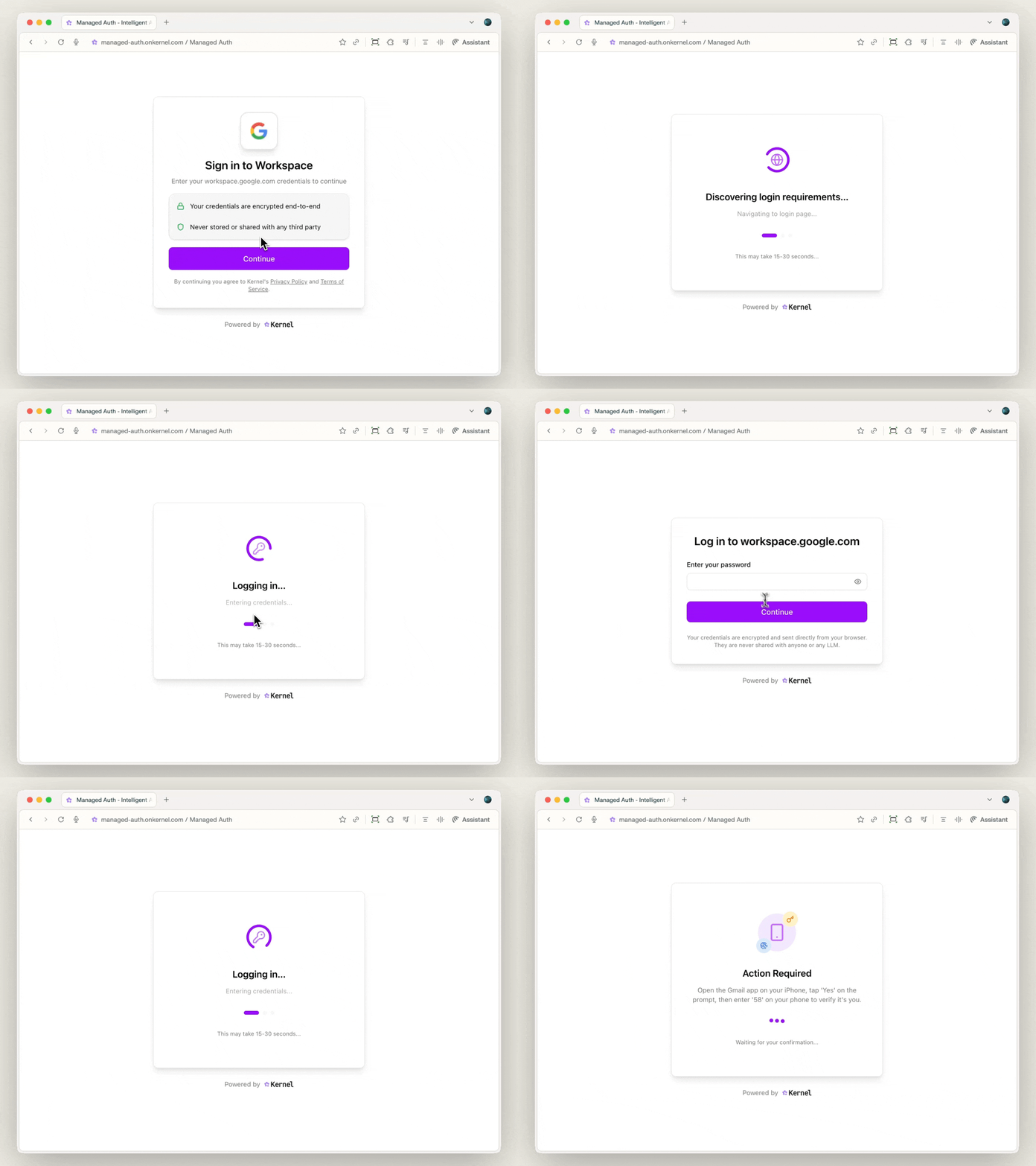
All platforms also support human-in-the-loop verification for 2FA methods they can't automate.
Email & SMS Verification
Some sites send verification codes via email or SMS instead of using TOTP. You can send these codes to an inbox managed by your agent so it can complete the verification.
AgentMail is a standalone API for creating agent-managed inboxes. You create an inbox, use that email when signing up or verifying, then poll for the incoming code.
Browser Use
In Browser Use, pair AgentMail with a custom tool to create inboxes for agent verification:
inbox = await email_client.inboxes.create()

@tools.registry.action('Get verification code from email')
async def get_verification_code():
    emails = await email_client.inboxes.messages.list(inbox_id=inbox.inbox_id)
    if emails.messages:
        return ActionResult(extracted_content=emails.messages[0].text)
    return ActionResult(error='No emails yet')
Other Platforms
Since AgentMail is a standalone API, you can wire it into any platform's agent loop:
- Browserbase: Call AgentMail's API between automation steps, or integrate via their Stagehand framework between
act()calls. - Steel: Call AgentMail between Playwright or CDP steps in your automation script.
- Kernel: Call AgentMail between Playwright steps in your deployed app, or add it as a tool via their MCP server.
Comparison
All platforms persist browser sessions and offer cloud hosting. Here's how each handles authentication.
| Browser Use | Browserbase | Steel | Kernel | |
|---|---|---|---|---|
| Persistent sessions | Contexts | Profiles | Profiles | |
| Profile sync (real Chrome profile) | ||||
| Storage state export | ||||
| 1Password integration | via Director | |||
| TOTP generation | Built-in | Via template | Credentials API | Managed Auth |
| Email/SMS verification | AgentMail | |||
| Domain restrictions | ||||
| Auto form detection & fill | ||||
| Credential field blurring | ||||
| Auth in OSS | Full auth support | Basic session state | Basic session state | Basic session state |
| Encrypted storage |
Best for each use case
- Syncing existing logins: Browser Use. It's the only platform that can export your real Chrome profile to the cloud, so your agent starts with all your existing sessions and preferences.
- Hands-off credential management: Kernel. Connect your 1Password vault, point Managed Auth at a domain, and Kernel handles credential discovery, form fill, and TOTP automatically.
- Human-in-the-loop approval: Browserbase. Director's 1Password integration requires explicit approval before every credential fill. It's the best choice when you want to review each login.
- Multi-tenant credential security: Steel. Their Credentials API handles form detection, auto-fill, and auto-submit without exposing values to the agent. Field blurring prevents vision-based extraction.
- OSS and self-hosted: Browser Use. The only platform with full auth support (profile sync, TOTP, credential injection) in its open-source library.
The Bigger Picture
Right now, we're in an odd moment. Agents have become remarkably capable, but the infrastructure they operate on was built for humans. There's no native authentication framework for autonomous agents that's been widely adopted, so the techniques in this guide are our best workarounds.
The methods above — cookie syncing, password managers, TOTP generation, and persistent hosted browsers — let agents access your accounts today.
And when agent-native authentication arrives, Browser Use will be pioneering it.
Full documentation: Authentication Guide | Cloud Authentication