Computer use lets AI agents operate software through its user interface. An agent reads what's on the screen, decides what to do next, and uses tools to click, type, and scroll.
For example, you could ask an agent to download last month's report from a dashboard. The agent would need to find the report page, select the right period, and export the file, using the same interface you would.
In this article, we'll explain the agent loop, compare how agents read interfaces, and cover common use cases and limitations.
TL;DR
- Computer-use agents click and type through interfaces like a human would.
- Agents read interfaces via screenshots, the DOM, and accessibility trees.
- Browser agents work on websites; desktop agents can also use native apps.
- Expect mistakes and slow runs. Limit access and review sensitive actions.
How Computer Use Works
A computer-use agent works in a loop: read the interface, choose an action, carry it out, and check what happened. It repeats these steps until it finishes the task, hits a limit, or needs your help.
Four components make this possible:
- The model reads the screenshots or interface data and chooses the next step.
- The harness is the software that runs the loop, calls tools, handles errors, and enforces limits.
- The tools let the agent read the interface and interact with it.
- The environment is the computer running the browser or desktop apps.
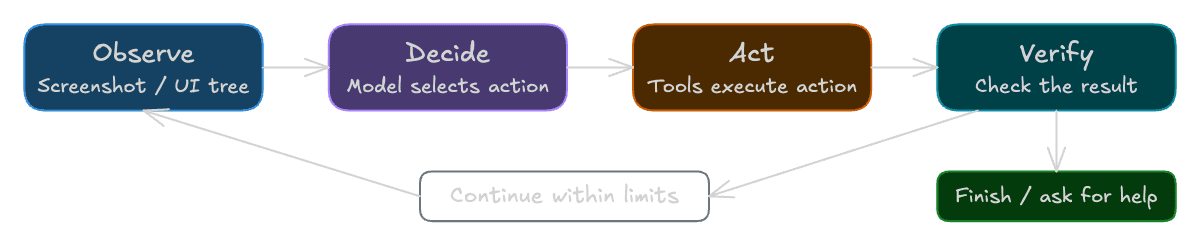
For example, the harness might send a screenshot to the model, which asks to click a button. The harness passes that request to a tool, then sends the result back to the model. Some integrations also let the model write code that controls the interface.
You can run the browser or desktop apps on your own machine or a remote server. The model doesn't need to run on the same machine. For example, a local browser can send screenshots to a hosted model. You'll also need to provide the apps, accounts, and permissions the task requires.
Claude 3.5 Sonnet's computer-use public beta launched in October 2024. Today, Claude, GPT models, and Gemini support computer use through compatible tools and integrations.
How Agents Read Interfaces
Before an agent can click a button or fill out a form, it needs to know what's on the page. Agents read interfaces in three main ways:
- Screenshots show the visible layout, text, icons, and controls as pixels.
- The DOM exposes a webpage's elements, text, attributes, and properties.
- Accessibility trees describe controls by their role, name, value, and state.
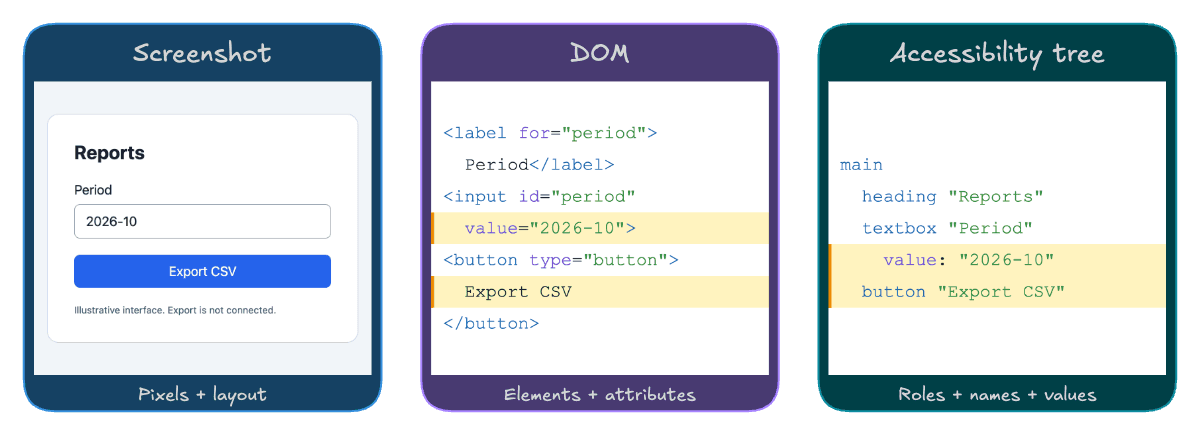
The image shows the same report controls in all three formats. We've shortened the DOM and accessibility excerpts to focus on the field and button.
An agent can combine these views. It might use the DOM to find a button, then check a screenshot to see whether a dialog covers it. Hybrid computer-use systems combine visual, accessibility, and programmatic tools this way.
How an agent reads the interface doesn't dictate how it controls it. An agent working from screenshots can still write browser-control code, and one reading the DOM can request individual clicks.
Screenshots
A screenshot shows the model what you would see on the screen. The model can find a button in the image and work out its coordinates. Connecting an instruction such as "click Export CSV" to the right control is called grounding.
Screenshots are useful when appearance matters. They show the layout, colors, icons, and overlapping elements, including charts and canvas controls that may have little useful information in the DOM.
The downside is that screenshots don't include DOM attributes or content outside the visible area. Small buttons can be hard to target, and a resized window or an old screenshot can send a click to the wrong place. The tool also needs to account for any difference between the screenshot size and the actual screen.
The DOM
The Document Object Model, or DOM, represents a web document as a tree of nodes. Tools can inspect elements, text, attributes, and properties.
On our report page, the agent can find the input and the "Export CSV" button without working out their screen coordinates. Tools often filter the DOM before passing it to the model, leaving out markup that isn't useful for the task.
A button can exist in the DOM even when it's hidden or covered by another element. The agent still needs to check whether it can interact with it. Native desktop apps also don't generally expose a webpage DOM.
Accessibility Trees
A browser builds an accessibility tree that describes the page's controls. It includes their roles and names, along with values and states such as whether a button is disabled.
In our example, the tree contains a textbox named "Period" and a button named "Export CSV". That tells the agent what the controls do without making it read every HTML element.
Operating systems provide similar accessibility information for desktop apps. How useful it is depends on the app: missing labels and custom controls can make parts of the interface hard to identify. The tree describes the meaning of the controls, so it isn't just a shorter version of the HTML.
Computer Use and Other Automation
When choosing an automation tool, consider which apps it needs to control and whether you can define the steps in advance.
Browser vs. Desktop
A browser agent works with websites, pages, and tabs. A desktop agent can also use installed apps and system windows, as long as its tools and permissions allow it.
Both can use screenshots and structured interface data. Desktop agents typically get that data through the operating system's accessibility APIs. Browser agents can also read the DOM.
Browser tools may also handle downloads, uploads, and files. If your task includes using a native spreadsheet app, though, you'll need desktop control as well.
Choosing an Approach
| Approach | Interface | Who defines the steps? | Good fit | Main tradeoff |
|---|---|---|---|---|
| Direct API | API endpoints | Application code or an agent | Operations the API supports | Limited to what the API exposes |
| Fixed script | Browser or desktop controls | Developer | Tasks with known, repeatable steps | Needs updates when the flow changes |
| Traditional RPA | UI controls and connectors | Workflow author | Established business processes | Requires setup and rules for exceptions |
| Adaptive UI agent | Visual or structured UI tools | Model, within limits you set | Tasks where the next step depends on what happens | Results, speed, and cost can vary |
Many browser automation tools combine these approaches. Robotic process automation (RPA) products can include AI, and agents can call APIs or reuse scripts. A well-written script can handle many interface changes, and an agent can still get stuck on one.
Tool calling lets a model request an action, while the Model Context Protocol (MCP) provides a standard way to connect it to tools and resources. For example, browser MCP servers can offer individual actions such as clicking a button, or a tool that handles a whole browser task.
As a rule of thumb, start with an API if it supports what you need. If you're testing the interface itself, though, you'll need to interact with it. A successful API request doesn't tell you whether the form works.
Computer Use Cases
Computer use is useful for tasks you'd otherwise have to carry out manually. Let's look at a few examples.
Portals and Legacy Apps
If a supplier portal has no useful API or integration, an agent could download your monthly invoices through its interface and save them with consistent filenames.
For tasks that stay in the browser, Browser Use Agents runs the agent for you, so you don't have to build and host the loop yourself. Tasks involving native desktop apps need an environment that supports them.
Cross-App Workflows
To help with a delivery question, an agent could read the order number in a support ticket, look up the shipment on the carrier's website, and draft an email with the tracking link and delivery status.
UI Testing
After you change an onboarding flow, an agent could create a test account, fill out the profile, and try to reproduce a reported validation error. It could then return a screenshot and the steps that triggered the error.
If you already have an agent, Browser Harness gives it browser tools it can adapt to control Chrome. Your agent still decides what to do next.
Limitations and Security
Before relying on an agent, test how often it finishes your tasks, how much each run costs, and what it can access.
Mistakes and Incomplete Tasks
An agent can select the wrong record, click before a page has loaded, or act on an old screenshot. In a long task, an early mistake can affect every step that follows.
Set a retry limit so the agent doesn't keep repeating a failed action. It should ask for help when a session expires, or a login requires multifactor authentication.
Test the tasks you actually plan to automate. Track which ones finish, which fail, and how often you need to step in. Published benchmarks can help you compare systems, but they won't tell you how reliably an agent will handle your particular workflow.
Speed and Cost
Computer use can be slow. The agent has to read the interface, wait for the model, run a tool, and wait for the app to respond. That adds up across a long task, especially if it has to retry steps. An API call or a script with predefined steps can finish much faster.
Costs depend on the model requests, how much image or text data they include, and the infrastructure running the browser or desktop. More steps and retries generally mean a more expensive run.
Grouping predictable actions or reusing working code can speed things up. But if a step changes the page unexpectedly, the agent needs to read it again before continuing. When comparing setups, measure the time and cost of finishing the task, including retries and any help from you.
Permissions and Prompt Injection
When an agent uses a signed-in app, it can access the actions available to that account. If the account can edit customer records or send emails, a mistaken click can have real consequences. Screenshots and page text may also send private data to the model provider, so limit what the agent can read and what you keep in logs.
Webpages and documents can contain instructions designed to trick the agent into doing something you didn't ask for. This is called prompt injection. It can reach the model through screenshots, DOM text, or accessibility data.
Give the agent a separate environment and only the accounts and tools it needs. Keep an action log, limit which sites it can visit where possible, and make sure you can stop it. Require approval before it sends messages, makes purchases, or deletes records.
An isolated environment limits access to the rest of your machine. The accounts inside it still need restricted permissions, since the agent can use whatever access you've given them.
Enforce these limits in your application and execution environment. Telling the model what it shouldn't do doesn't remove its ability to do it.
Conclusion
Start with one small task and decide how you'll check that it worked. That might mean checking the contents of a downloaded file, confirming a change was saved, or reproducing a reported bug. Set a time or cost limit before running it.
For tasks that stay in the browser, the Browser Use agent quickstart is a good place to start.