
Vibe coding has made it easy to create websites and apps. Open Claude Code, describe what you want, wait a few minutes, and there it is: an app that, at first glance, appears polished and functional.
What coding agents have automated to a lesser extent is the work that follows: determining whether the website is usable.
You still have to move through the website the way a user would, clicking buttons, entering text, following links, and understanding what could be made clearer, friendlier, and more useful.
This is the work of QA, and for many, this task falls back to a human. For those building with coding agents, QA involves testing the app yourself, noticing what feels wrong, re-prompting the agent, and repeating the process.
The QA skill automates that loop with an AI agent. It gives the agent a browser, a rubric, and instructions to use the app, notice what is wrong, and say what should be improved.
To demonstrate our QA skill, we used a fake e-commerce site with products, accounts, baskets, registration, login, and checkout. We wanted to see whether the agent could move through the website the way a customer would, and whether it could explain what could be made better.
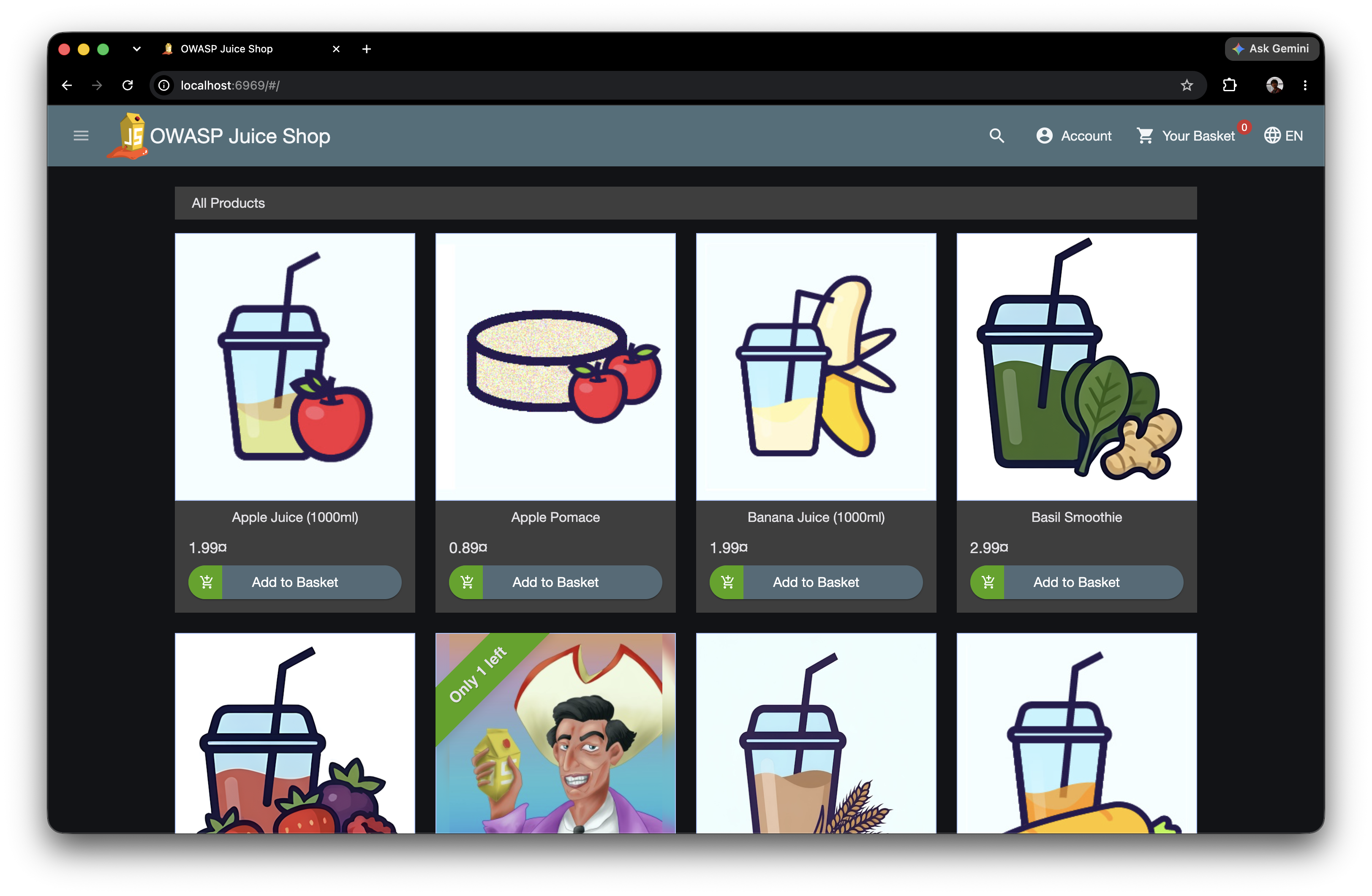
This was the prompt we gave our coding agent:
QA this website. Move through it like a user would, test the main flow, and
tell me what works, what breaks, and what should be improved.
Then, the browser opened. The agent read the page, found the products, added an item to the basket, and continued to checkout until the site forced it to create an account.
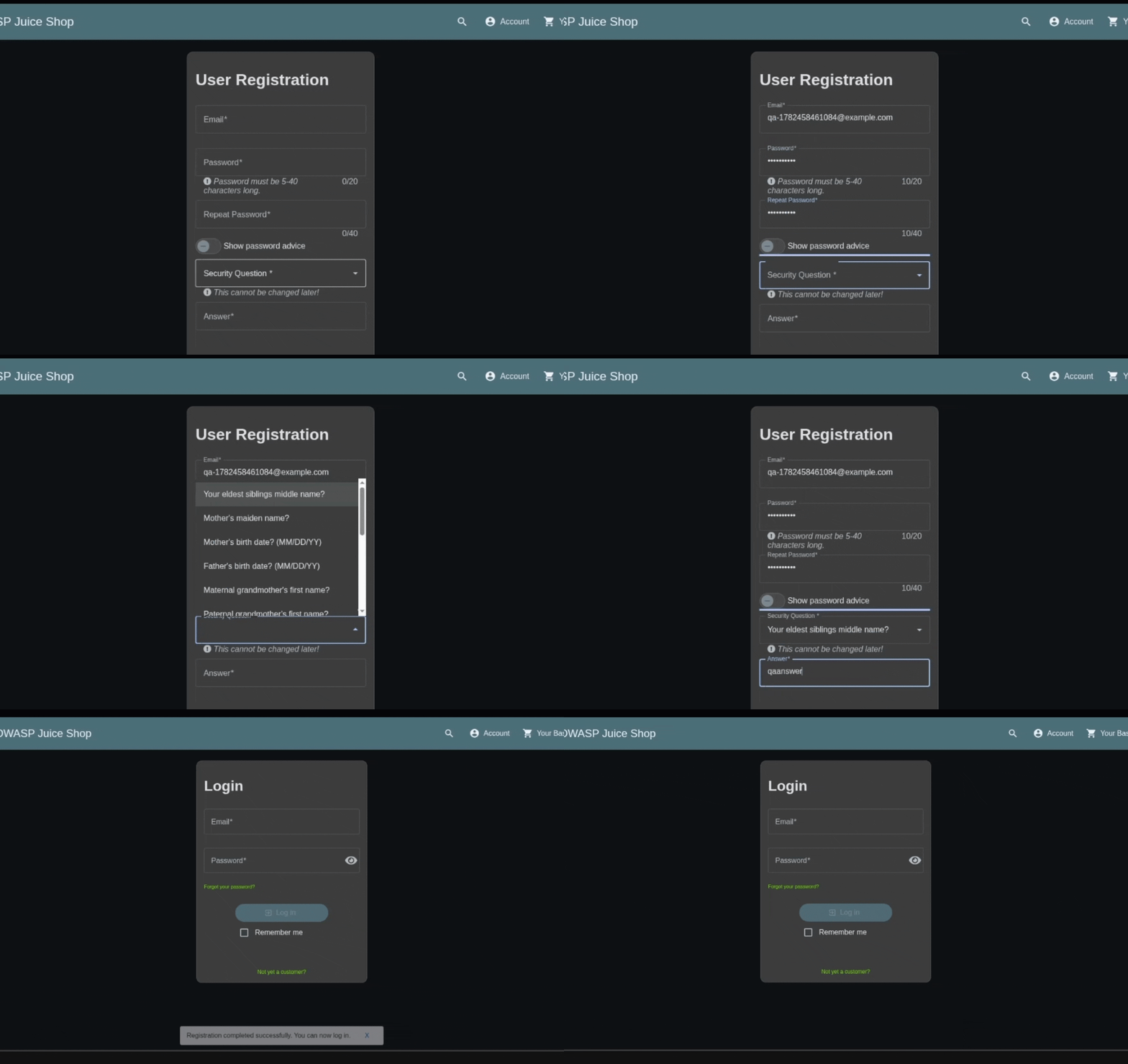
The agent filled the fields, selected a security question, submitted the form, and watched what changed.
By trying the website itself, the agent was able to test if everything made sense, if the interface was intuitive, if the user was being led somewhere useful.
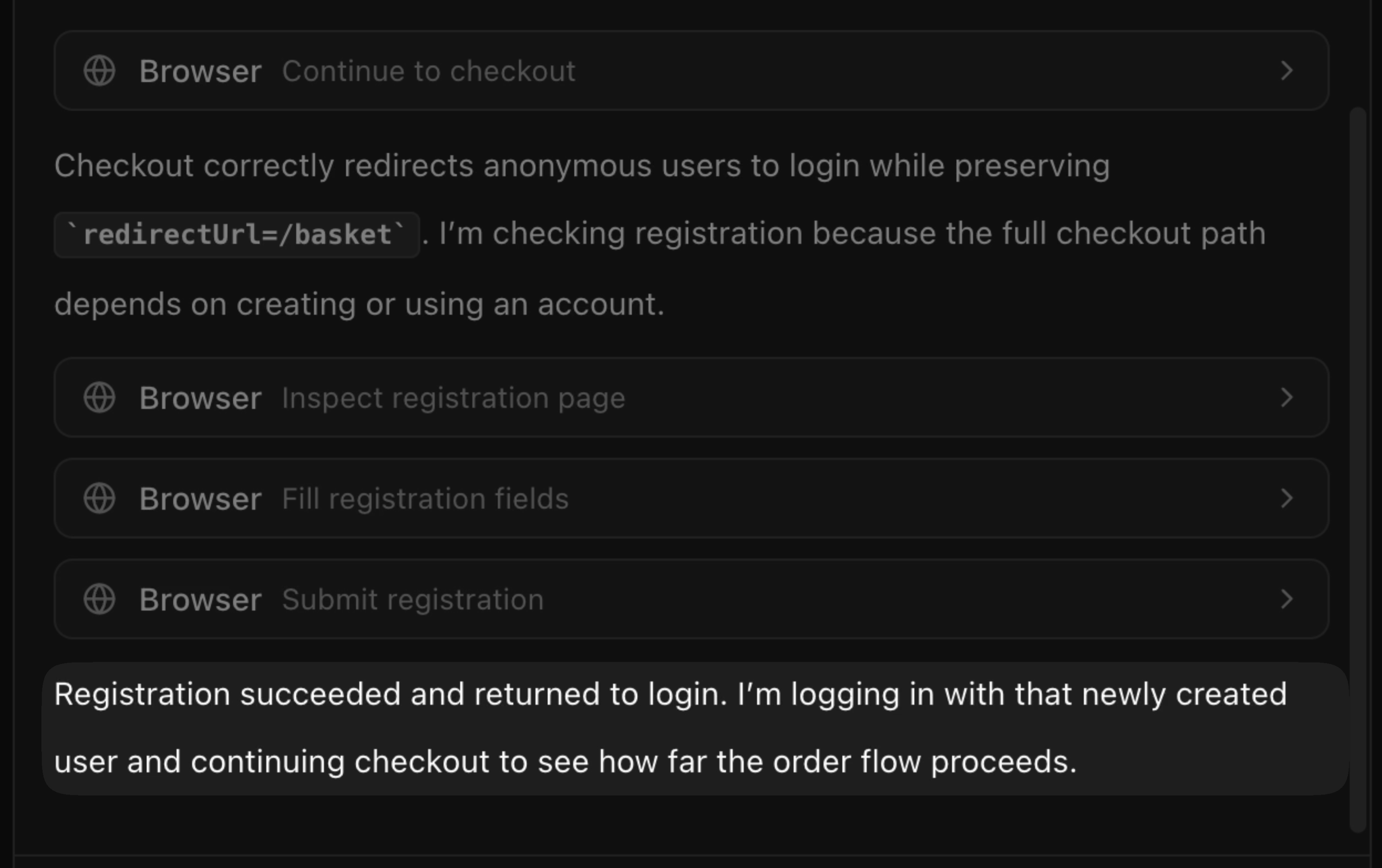
In its final output, the agent described the checkout, noting, for example, that anonymous users were redirected to login while preserving the basket URL.
What the QA skill does
The QA skill is a set of instructions that your coding agent loads. It works inside agents like Claude Code, Codex, Cursor, OpenCode, and others. You give it a URL and a task, and it uses Browser Use Cloud to control a real browser to test the website.
It returns a 1-5 score with evidence: what the agent tried, what succeeded, what failed, and what would make the app better. You can then pass this information back into your coding agent, so it can improve the website.
Score: 4/5

The main signup flow works. The agent could find the call to action, enter
the required information, submit the form, and reach the next screen.

Issues found:
- The form did not explain one invalid input clearly.
- The next screen could make the user's progress more obvious.
- The primary action worked, but the surrounding copy left some uncertainty.
Set it up
Log in or sign up for Browser Use Cloud.
Browser Use has a free tier, so you can run everything in this guide completely free.
Install the skill in your coding agent:
npx skills add browser-use/browser-use --skill qaSet your key:
export BROWSER_USE_API_KEY=bu_your_api_keyOr try here the agent used by the QA skill for tasks online.
Run a test
Ask your agent:
QA the experience of adding paper towels to my cart on amazon.com.When to use it
You can use the QA skill when you're building an app, are unsure of whether it works, and would like to outsource the work of testing it. This could be:
- after a coding agent builds a new page or app
- before you merge a UI change you have not yet verified
- when you want feedback on a project you're working on
- to debug errors
Try it
- Get a free Browser Use API key.
- Install the skill:
npx skills add browser-use/browser-use --skill qa - Send the task to your coding agent: "QA my app, and tell me what to fix."
You can also use the agent behind the QA skill by using our v4 agent.