


You found a website with data you need. Maybe it is a list of products, or maybe it is an article. You want a simple Python script that opens the page, extracts the data, and gives you something useful.
A normal Python request often gets blocked or redirected, and scraping can be complex. This is exactly what fetch-use is for.
What is fetch-use?
fetch-use is a Python SDK for getting content from websites the way a real browser would.
This matters because the webpage you see is often not the same page your scraper sees. A site might send different HTML, redirect you, or block the request entirely.
With fetch-use, you can provide a URL and get back the page in a format that is easier to work with. It handles all of the annoying parts of web scraping.
If you are still deciding between a simple scraper and a full browser agent, read our web scraping guide.
How does fetch-use work?
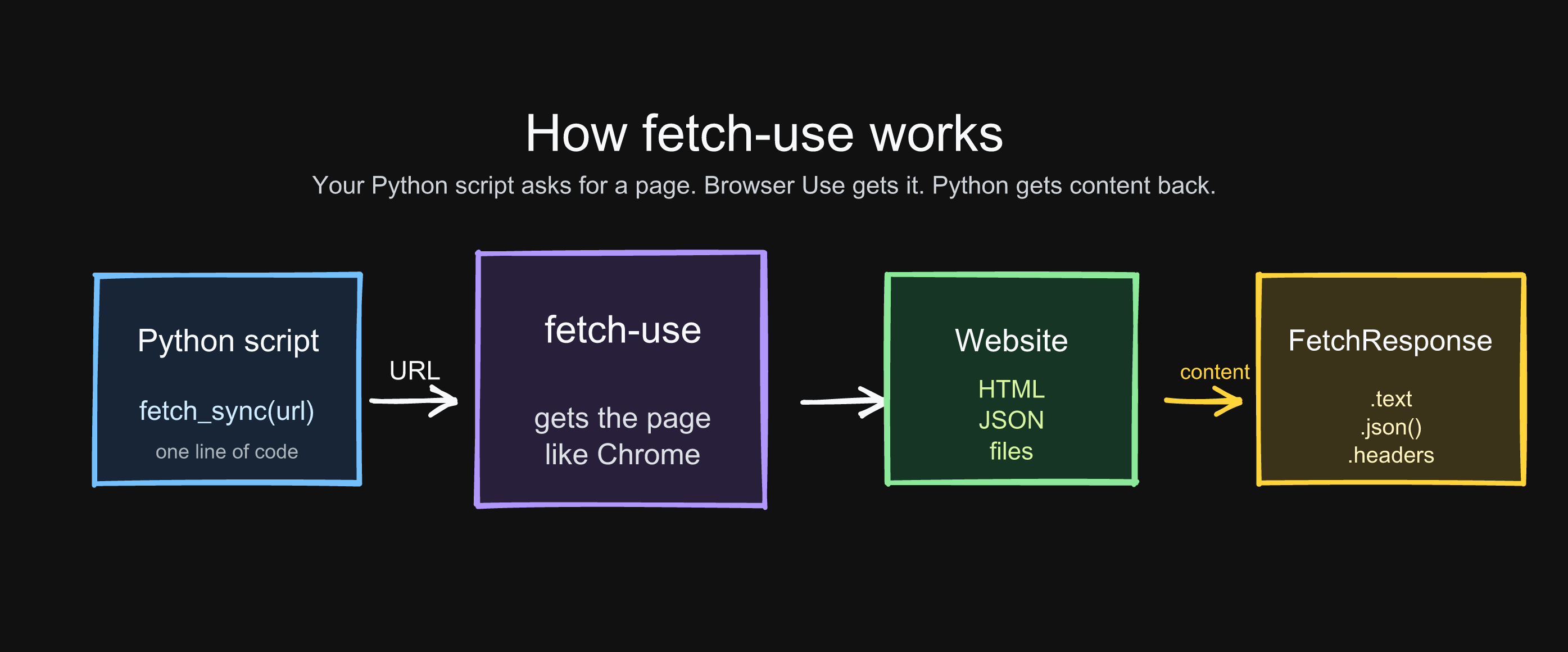
When you call fetch-use, your script sends a request to Browser Use. Browser Use fetches the URL in a way that looks much closer to a real browser than a normal Python script, handles details like redirects, cookies, sessions, and response formatting, and then returns the response to your Python program.
Install fetch-use
Install the SDK:
pip install fetch-useSet your Browser Use API key:
export BROWSER_USE_API_KEY=bu_your_api_keyYou can create an API key in Browser Use Cloud.
Your first request
Here is the easiest way to get started:
from fetch_use import fetch_sync

response = fetch_sync("https://example.com", output_format="markdown")

print(response.status_code)
print(response.text)
Give fetch-use a URL, and it gives you back the page.
The response object includes the fields you expect:
print(response.status_code)
print(response.headers)
print(response.text)
If you are calling an API endpoint that returns JSON, parse the response body directly:
data = response.json()Use markdown output for readable pages
Raw HTML is usually noisy. A page might include navigation, scripts, styles, footers, tracking tags, layout markup, and other content that has nothing to do with the data you actually want.
For articles, docs, product descriptions, and other text-heavy pages, output_format="markdown" is often easier to work with:
from fetch_use import fetch_sync

response = fetch_sync(
    "https://example.com/blog-post",
    output_format="markdown",
)

print(response.text)
Instead of parsing a large HTML document immediately, you can start with cleaner text.
Use structured output to inspect a page
When you are exploring a page for the first time, you may not know what is available yet. You might want the title, links, headings, forms, or tables before deciding how to scrape it.
Use output_format="structured":
from fetch_use import fetch_sync

response = fetch_sync(
    "https://example.com",
    output_format="structured",
)

data = response.json()

print(data)
This is useful when you want to understand the shape of a page before writing a more specific scraper.
Keep cookies with a session
Some sites only make sense across multiple requests. The first page sets cookies, the second page expects them, and the third page changes depending on what happened before.
Use a session_id to keep that state:
from fetch_use import fetch_sync

session_id = "products-run-1"

home = fetch_sync(
    "https://example.com",
    session_id=session_id,
)

products = fetch_sync(
    "https://example.com/products",
    session_id=session_id,
    output_format="markdown",
)

print(products.text)
Requests with the same session_id share the same session, so cookies can carry over from one request to the next.
Send a POST request
You can also use fetch-use for endpoints that expect data:
from fetch_use import fetch_sync

response = fetch_sync(
    "https://httpbin.org/post",
    method="POST",
    json_body={
        "query": "wireless headphones",
        "page": 1,
    },
)

print(response.status_code)
print(response.json())
This is especially useful when a website loads data from an API behind the page.
Handle errors
For real scripts, always check whether the request worked before parsing the result:
from fetch_use import FetchError, fetch_sync

try:
    response = fetch_sync("https://example.com", output_format="markdown")
    response.raise_for_status()
except FetchError as error:
    print("Request failed:", error)
else:
    print(response.text)
Or check the status code directly:
if response.status_code == 200:
    print(response.text)
else:
    print("Failed:", response.status_code)
Complete example
Here is a small script that fetches a page and saves the readable version to a file:
from fetch_use import fetch_sync

url = "https://example.com"

response = fetch_sync(url, output_format="markdown")
response.raise_for_status()

with open("page.md", "w", encoding="utf-8") as file:
    file.write(response.text)

print("Saved page.md")
And here is the same idea using structured output:
import json

from fetch_use import fetch_sync

url = "https://example.com"

response = fetch_sync(url, output_format="structured")
response.raise_for_status()

data = response.json()

with open("page.json", "w", encoding="utf-8") as file:
    json.dump(data, file, indent=2)

print("Saved page.json")
When should you use a browser instead?
fetch-use is best when you want page content without opening a full browser.
Use browser automation when the page requires interaction:
- clicking buttons
- filling out forms
- scrolling to load more data
- completing a login flow
- waiting for JavaScript-rendered content
- handling a browser challenge or CAPTCHA
For many scraping tasks, though, starting with fetch-use is faster and simpler than opening a browser first.
If you do need a real browser, use Browser Use:
from browser_use import Agent, ChatBrowserUse

agent = Agent(
    task="Go to https://quotes.toscrape.com, and extract the first 5 quotes.",
    llm=ChatBrowserUse(model="bu-2-0"),
)

agent.run_sync()
Use fetch-use when you just need the page content. Use Browser Use when the site needs clicks, scrolling, forms, login, or JavaScript-rendered content.